What should I hide in an order screenshot?
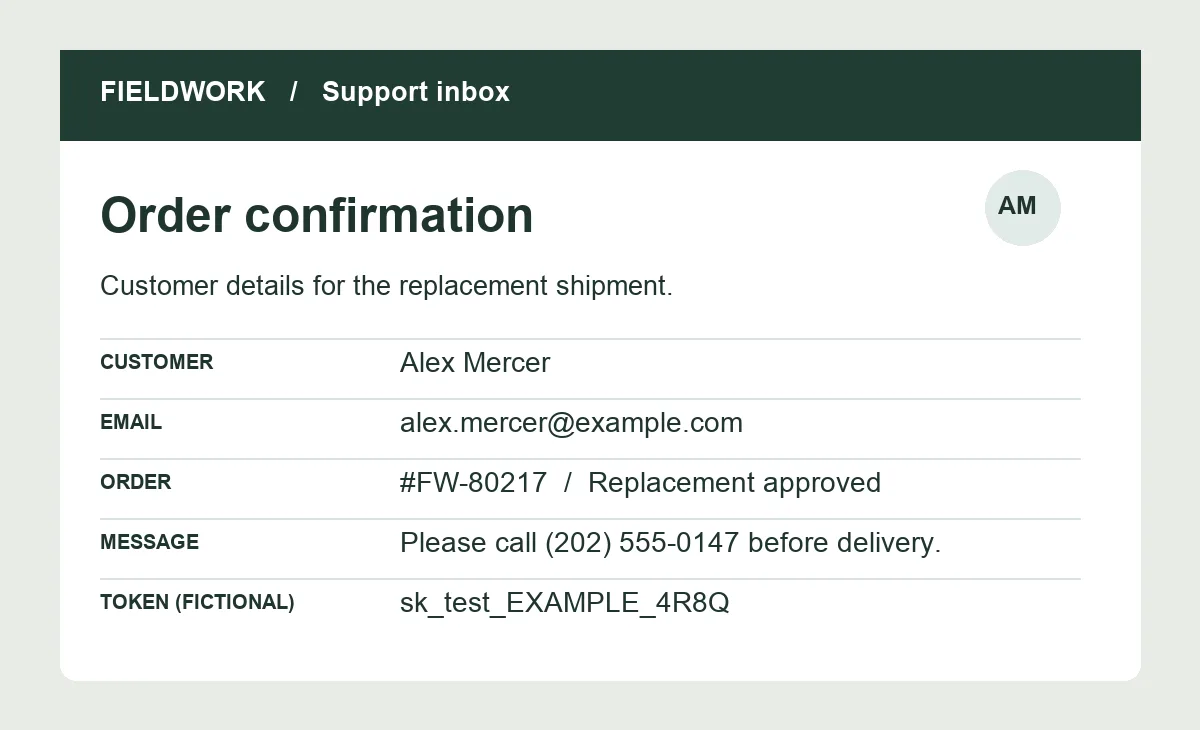
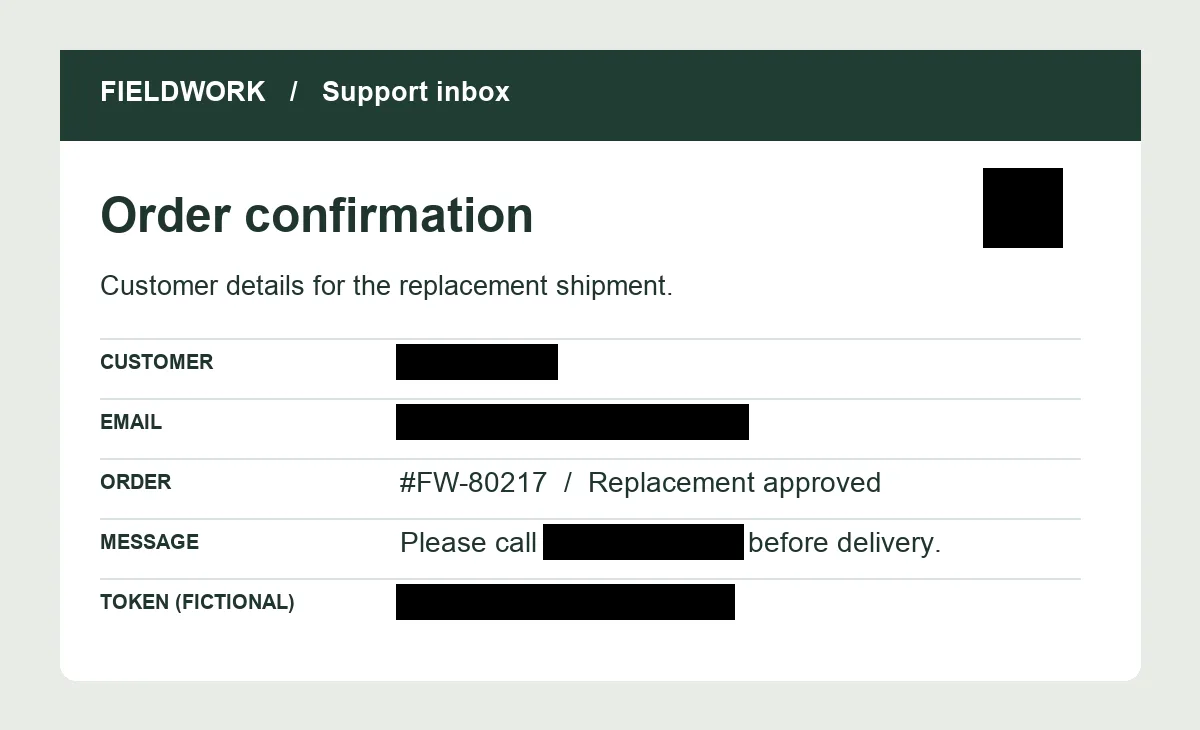
A fictional ticket makes a useful rehearsal. Compare which fields remain legible in the masked version.
How do I redact a screenshot?
Screenshot redaction lets you share the part of a screen that explains a problem while hiding private text. Paste your capture, cover sensitive values with solid rectangles and save the result as a PNG.
Paste the capture
Use the clipboard or choose a screenshot from your phone. Pick out the error message or conversation you want the recipient to see.
Mask sensitive text
Open Find private details to look for contact details, card numbers, IDs, bank numbers, keys, tokens, IP addresses, QR codes or barcodes. You can also enter a phrase. Review the suggestions and draw solid boxes over anything missed. For repeated screenshots, open Templates and save your layout. Apply it to the next capture and check each mask before export.
Attach the PNG
Download a flattened copy or paste the exported image directly into a ticket if your browser allows clipboard access.
A good bug report shows the error, the control you used and enough of the surrounding interface to explain the problem. Before you redact screenshot details, decide which of those things the recipient needs. If a form rejected an address, the field label and error message may explain everything. The complete address, account avatar and browser tabs probably add very little to the report.
Paste the capture into the editor with Command or Control and V. You can also choose an image file or drop it onto the page. The sample is a fictional support ticket with an example email address, a phone number and an order reference. Use it to practice covering a value while keeping the label next to it readable. Keep the error state visible if that is what the recipient needs to diagnose.
Where can private information appear in a screenshot?
Start at the top of the screenshot. A URL can contain a customer identifier in its path or a private token after a question mark. Browser tabs may display other clients’ names. A bookmarks bar can identify an employer. Cover the full sensitive segment with a solid rectangle and inspect both ends at actual size. For a secret token, even a few exposed characters can be more information than you intended to send.
Move down to the main panel. Read quoted messages as well as the latest reply. An email address can occur in the sender line, signature and quoted history. A person may appear as initials in a colored circle next to every message. Give repeated fields their own regions if a single large rectangle would hide evidence about the bug. Select each region in the list to fine-tune its position or delete an unnecessary mark.
Finish at the screen edges. Notification banners, sidebars, status bars and open file names are easy to overlook when you concentrate on the error. A long mobile screenshot can contain several screens of conversation below the initial viewport. Use Fit to see the composition, then pan from top to bottom at 100%. Leave room around descenders, punctuation and selection highlights where they extend past the apparent text box.
Is blur enough to hide text?
Opaque solid masks work well for exact values. Choose a consistent color so the support agent can distinguish deliberate redactions from missing UI. Blur and mosaic preserve visual patterns that can help someone recover short words or digits. Use the blur editor for a distracting decorative element. For any live account identifier, replace all the relevant pixels with solid color.
PNG is a good choice for a capture with thin borders and small type. A screenshot keeps its original dimensions when you export, even if you zoomed out to fit a long conversation on screen.
For a series of screenshots with the same layout, open them together and choose Apply to all to reuse a saved template. Check each screenshot before downloading the ZIP.
What files can I use for screenshot redaction?
Can I redact screenshot text without drawing precisely with a mouse?
Use the region list to add a rectangle and edit its numeric position and size. With a region selected, the arrow keys nudge its position. This is especially helpful on a narrow phone screen when the field you need to cover sits beside an important label.
What happens to the original capture?
Downloading creates a flattened copy with an anonymous filename by default. To retain the original name with a masked suffix, select Keep filename. Check which attachment you send.
Can I use a PDF of a support conversation?
Open a picture of the relevant page in the editor. A PDF can contain selectable text, annotations and multiple pages. Sharing the flattened screenshot exports only the pixels you reviewed. Check each additional page separately if the recipient needs more of the conversation.
Does my screen capture leave my device?
Your capture stays in your browser. To check, load the editor, go offline and paste the screenshot. You can finish the redaction and save it while disconnected.
Does redacting a screenshot remove metadata too?
Yes. Visual exports are re-encoded from the edited pixels without the original EXIF or GPS data. A location printed in a map, filename or message is visible content and needs its own mask.